Documentation Index

Fetch the complete documentation index at: https://docs.trepa.io/llms.txt

Use this file to discover all available pages before exploring further.

You can use Trepa in any browser at trepa.app. Installing it as an app is optional and gives you a home-screen icon and a full-screen experience.
1

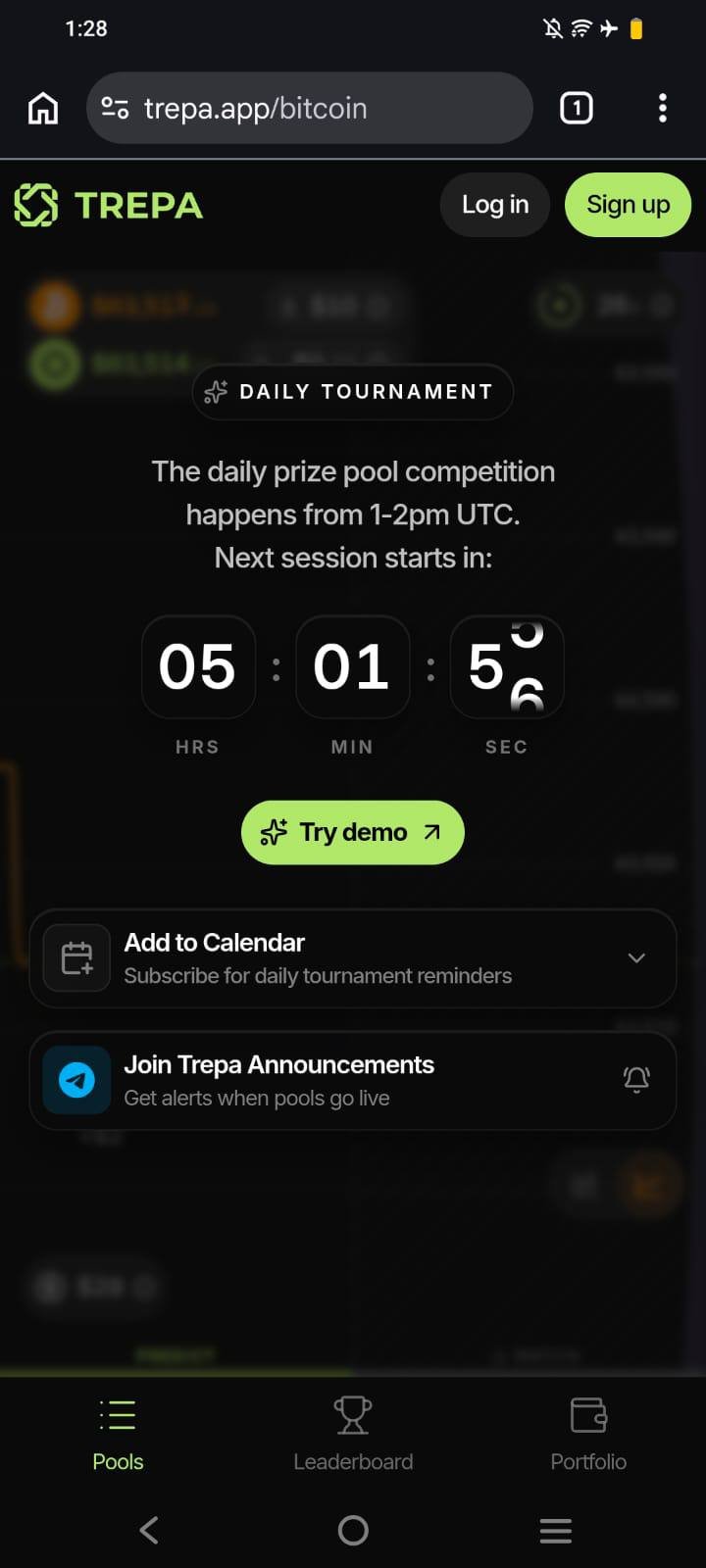
Open Trepa in Chrome

Open Chrome on your Android device and go to trepa.app.
2

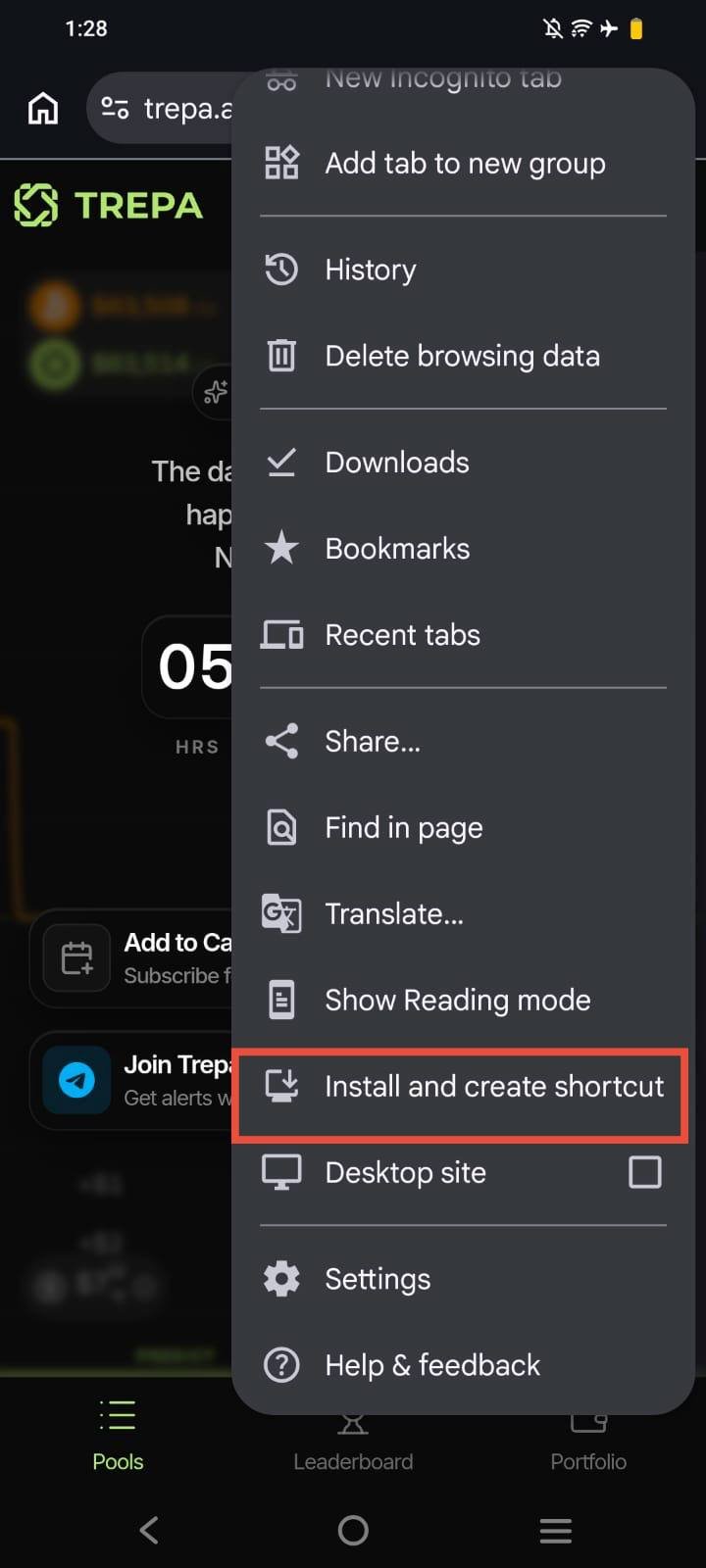
Add to Home screen from the menu

Tap the three dots (⋮) in Chrome, then Add to Home screen (wording may vary slightly by Chrome version).
3

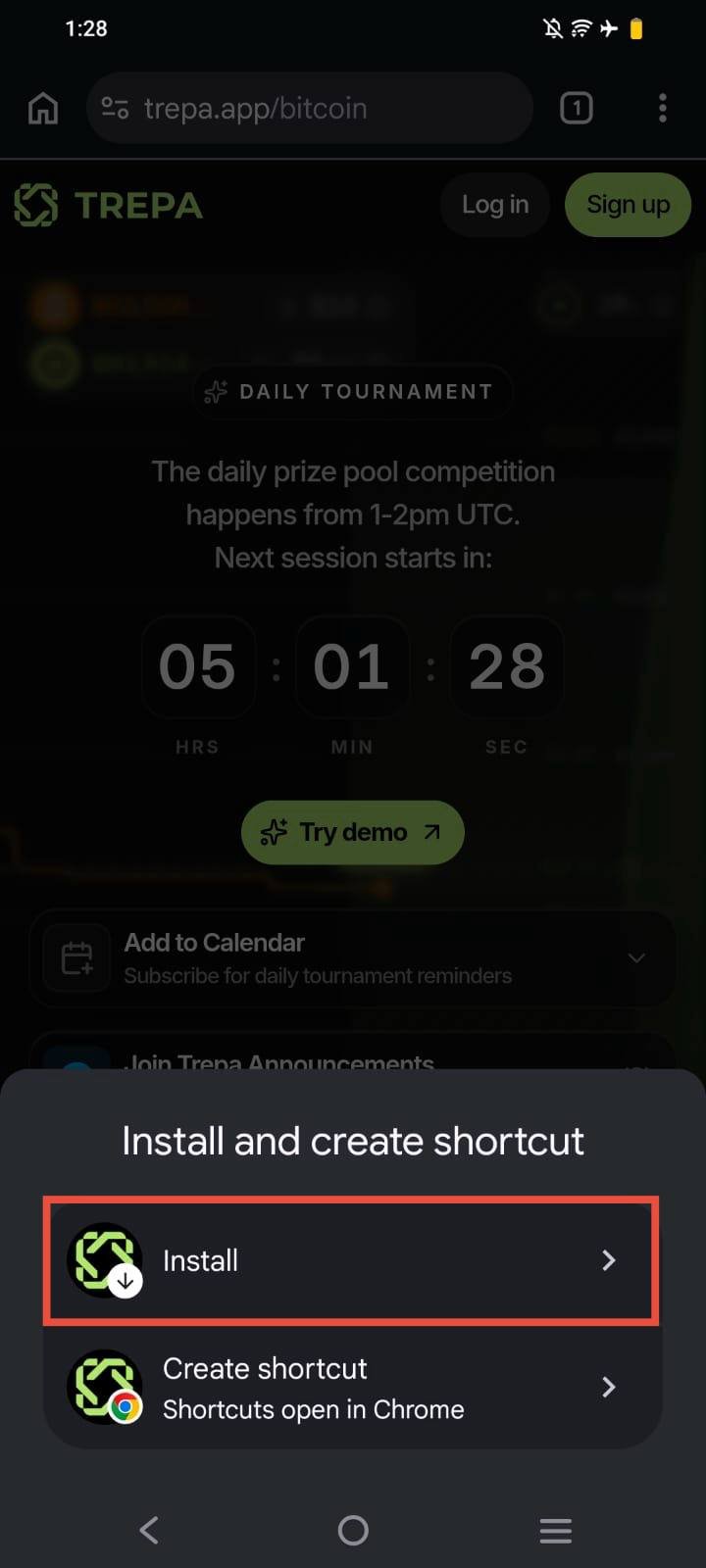
Choose Install

On Add to home screen, tap Install for the full app experience. Create shortcut only adds a link to Chrome.
4

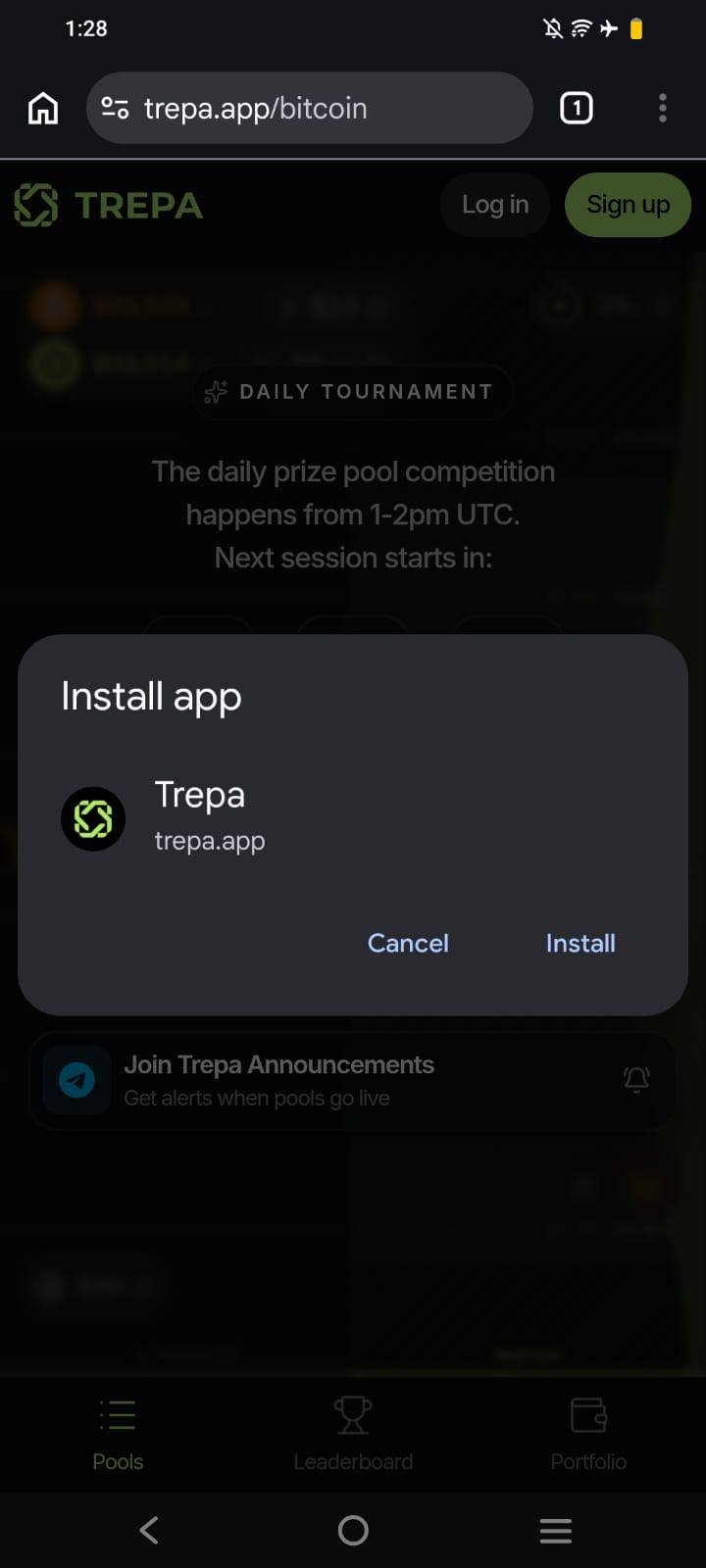
Confirm Install

In the Install app dialog, tap Install to finish.
5

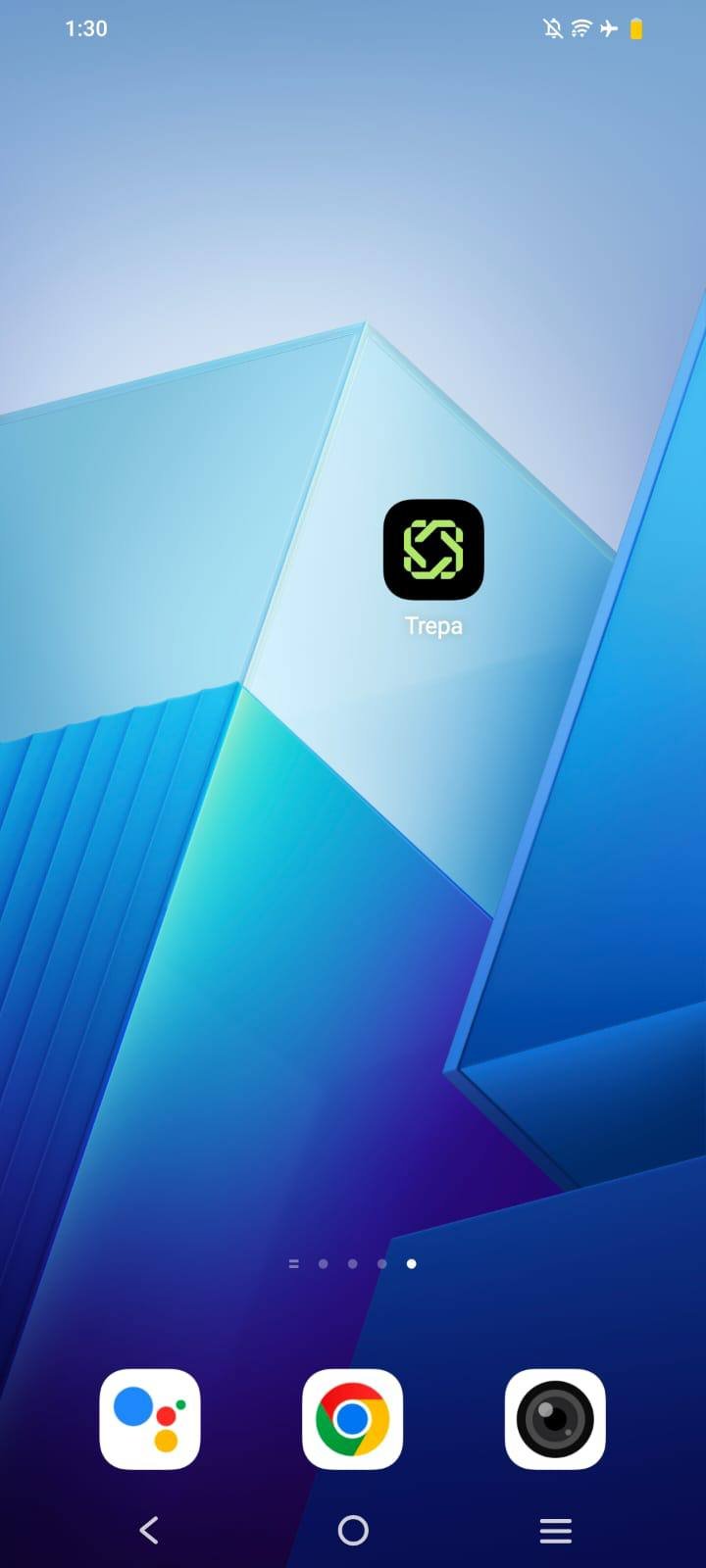
Open from your home screen

The Trepa icon appears on your home screen or in your app drawer. Tap it to open the app.
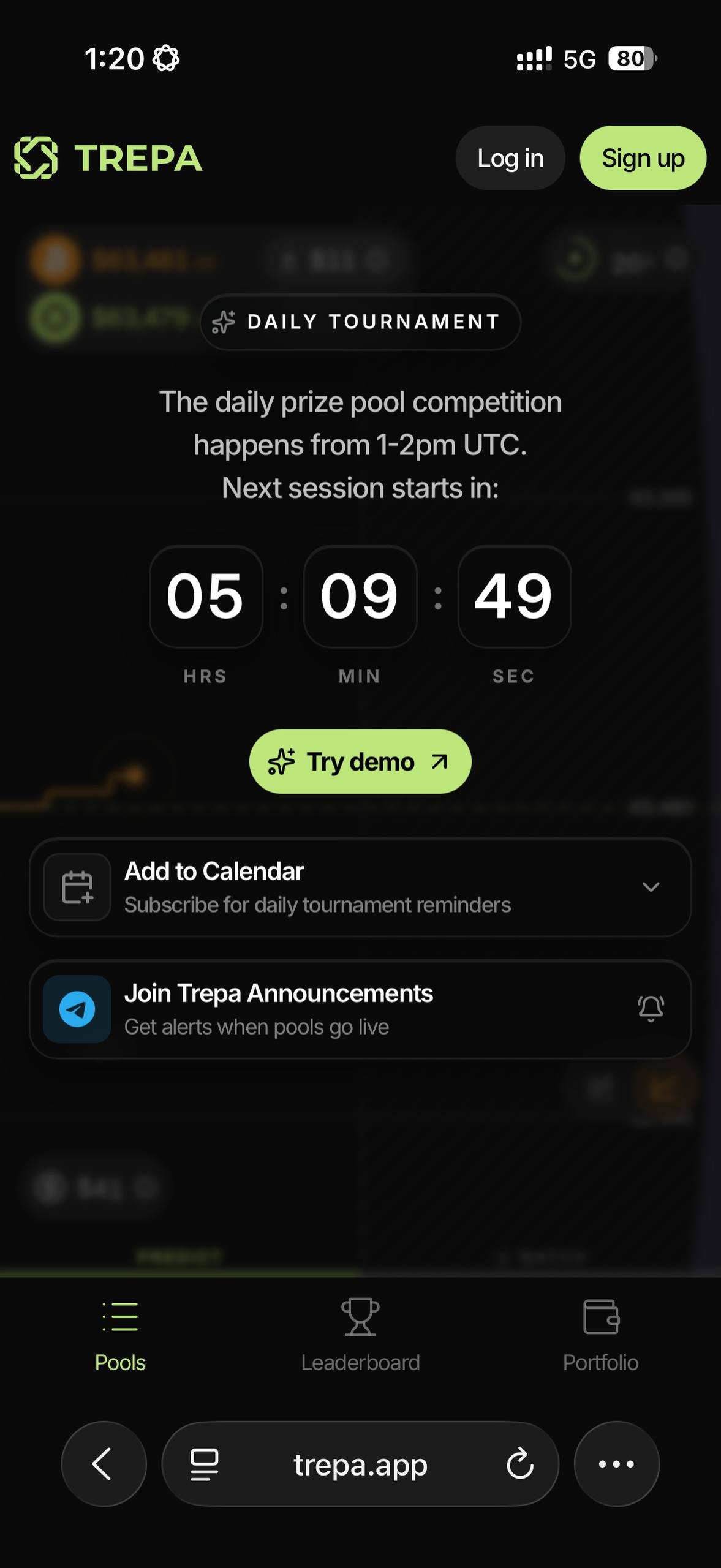
Step 1: Open Trepa in Chrome
Android Chrome: Trepa Pools at trepa.app/pools.
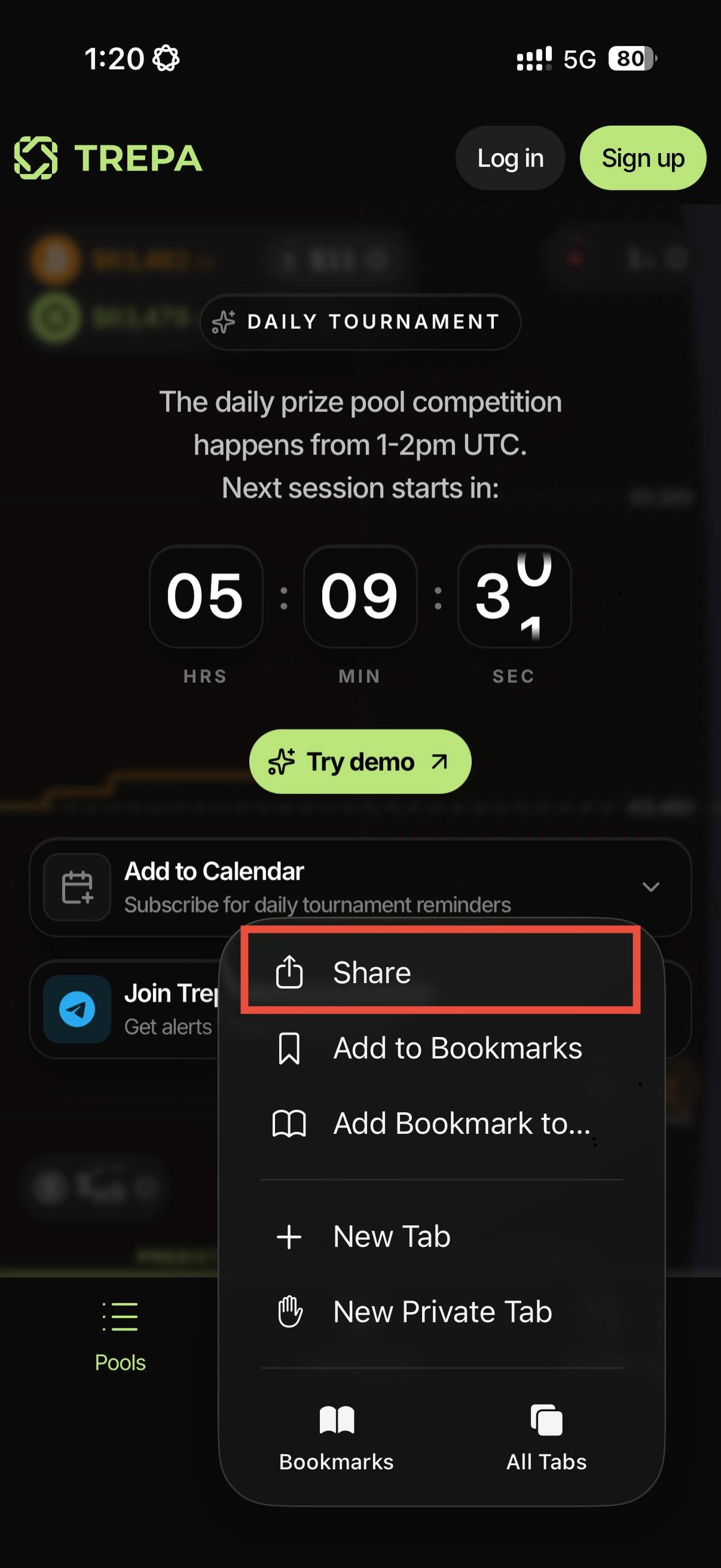
Step 2: Add to Home screen in the menu
Chrome overflow menu with Add to Home screen highlighted.
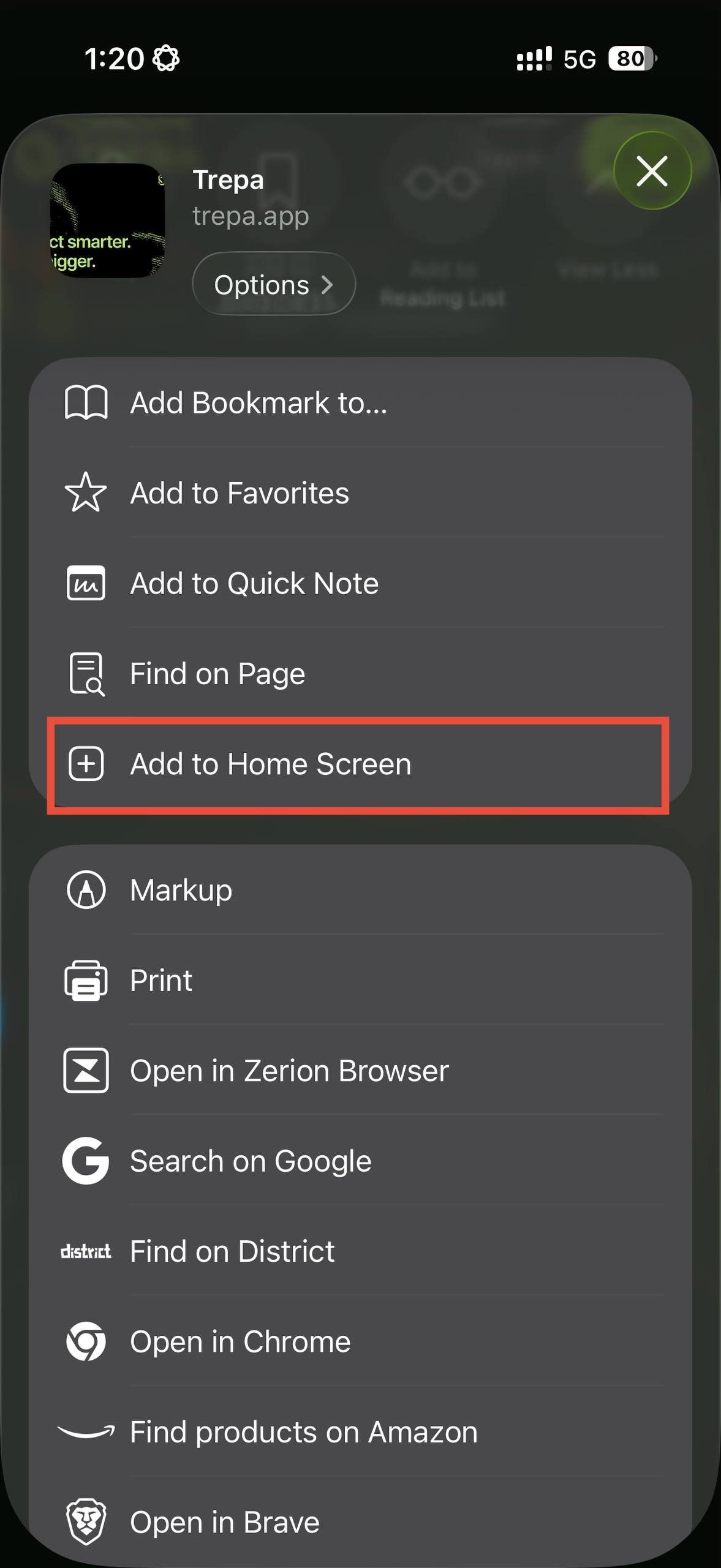
Step 3: Install vs shortcut
Add to home screen sheet with Install and Create shortcut.
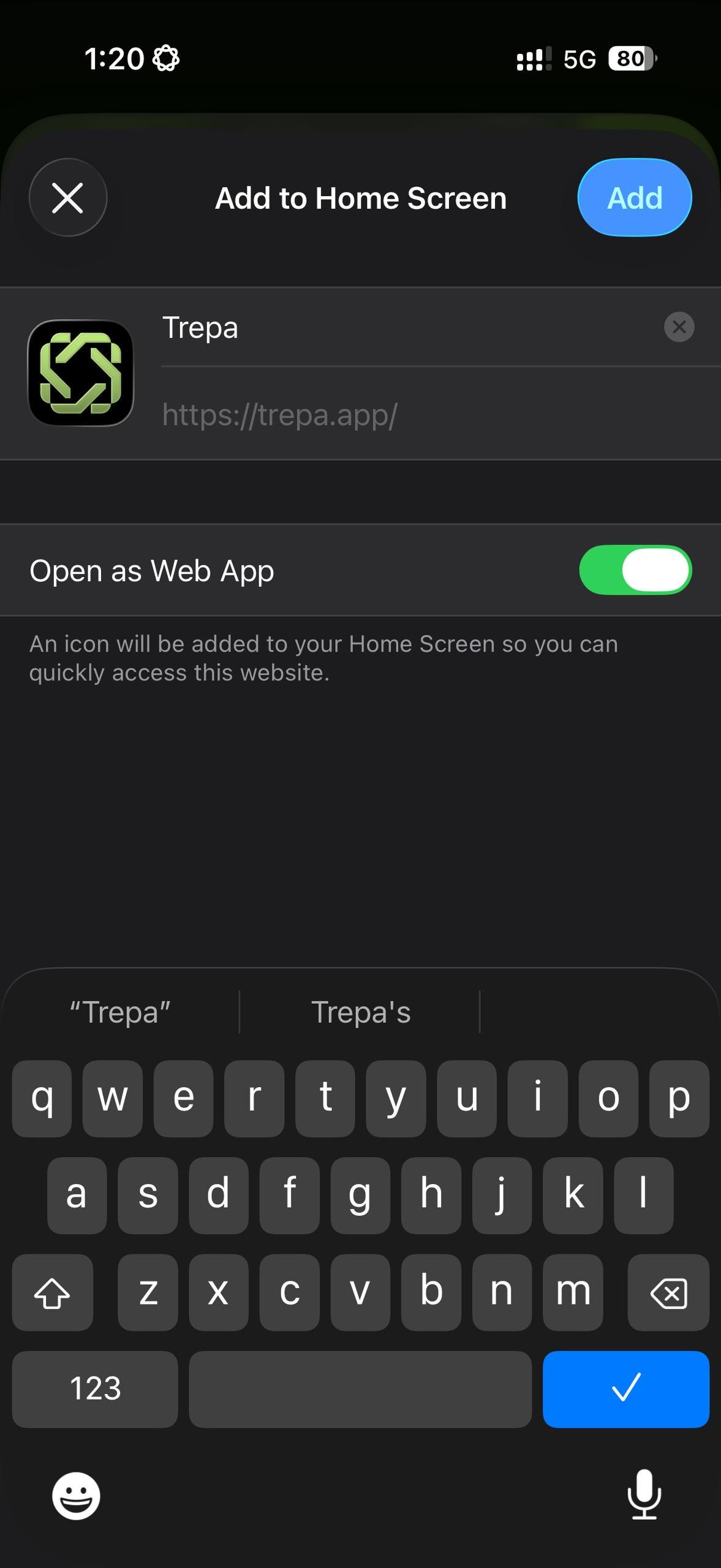
Step 4: System Install dialog
Install app dialog for Trepa with Cancel and Install.
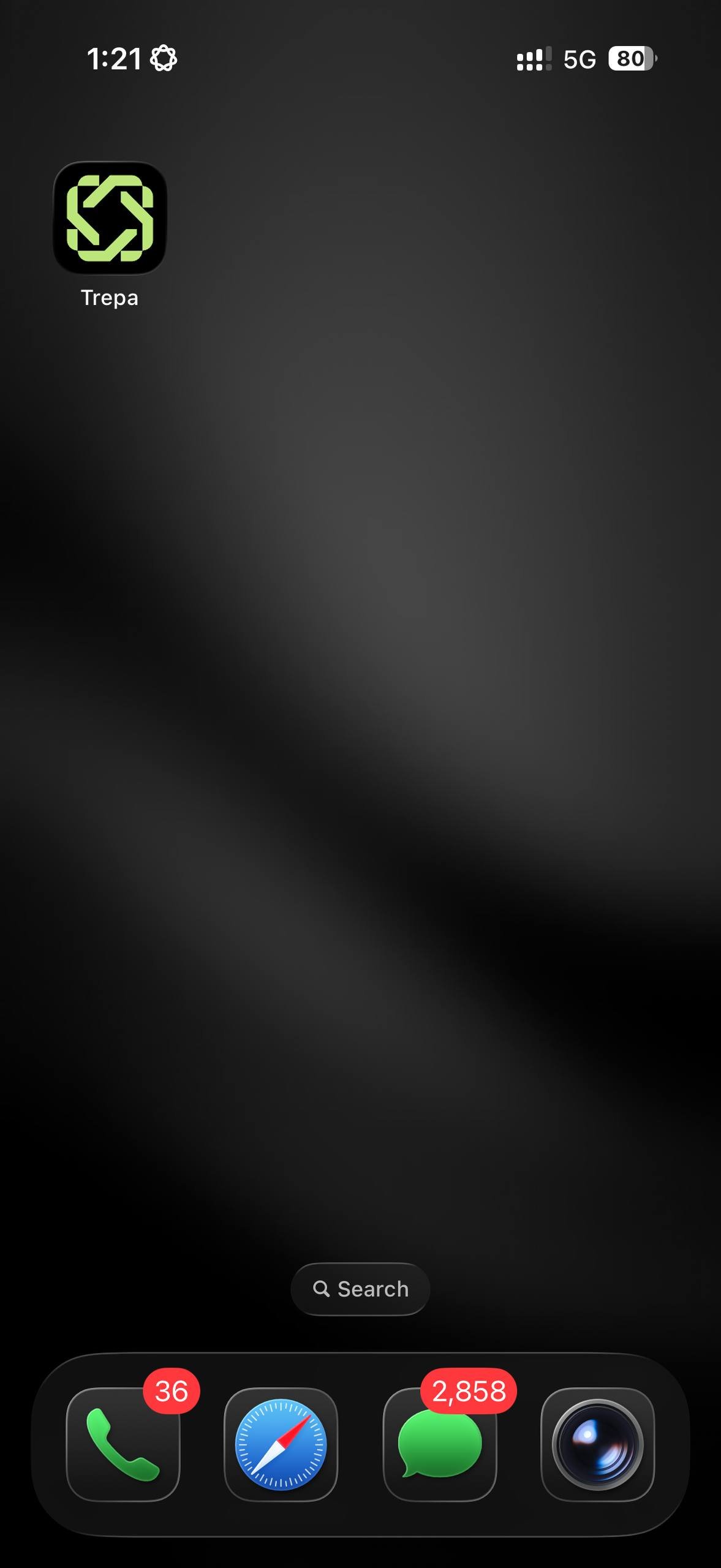
Step 5: Home screen icon
Trepa app icon on Android home screen.
If you don’t see Add to Home screen or Install app, make sure you’re using Chrome on Android or Safari on iPhone, and that the browser is up to date.
Last modified on May 4, 2026